
• I want to thank all the members that have upgraded your accounts. I truly appreciate your support of the site monetarily. Supporting the site keeps this site up and running as a lot of work daily goes on behind the scenes. Click to Support Signs101 ...

How to Get A Better Quality Print? - Canon Colorado 1650

Tristan21

New Member
Hey guys. We recently got a Colorado 1650 - it's such an awesome printer, but how can I make it print better?

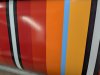
We do the weekly cleanings, but I feel like we're missing something. This material is ImagePerfect iD9 Slide, calibrated and the profile (as far as we know) is correct. Is there something we're missing?

Video - https://photos.app.goo.gl/v5g5cYZcQpxcZ1Rs8
PXL_20260303_130303233.jpg
 

Grizzly

It’s all about your print!
This looks like a bleeding issue between passes or stepping problem. Is this High Quality or Production?
If you've already done calibration and AAC is on, I'd say there is too much ink being laid down causing it to spread right at the pass which causes it to be darker.
How is the nozzle check? You have to run the Printhead Quality check and there is a basic Nozzle Print at the end that might help you see if it's head specific.
(One thing I don't like about the Colorados is they don't have a true Printhead nozzle check like every other printer I have ever owned, but I digress)
It definitely looks a little worse on the red/yellow tones which would suggest magenta/yellow heads vs the blue but there is still some on the blue as well. So either multiple print heads are bad or it's stepping.
If your platten is too hot it could cause this as well. Shouldn't be more than 24c for standard vinyl like this.

Also, trying eliminating a variable. Print the same thing on a different media just make sure it's not the media. If it does the same exact thing then it's most likely the printer.
Try printing the same thing on the same material but in matte mode. Then it's just a profile issue specific to gloss mode.
 
  • Informative
Reactions: 1 user

MarkSnelling

Mark Snelling - Hasco Graphics
You might want to try turning the temp down by 1-2 degrees. If the temperature is too warm, the ink expands just a bit and can make these lines. By cooling down just a few degrees, the ink won't expand quite as much and it could help. A lot of the suggestions from Grizzly are very good as well....especially the AAC.
 
Top