• I want to thank all the members that have upgraded your accounts. I truly appreciate your support of the site monetarily. Supporting the site keeps this site up and running as a lot of work daily goes on behind the scenes. Click to Support Signs101 ...

Onyx - White Overflood Layer Stack

Think713

New Member
This is for you guys using a flatbed.
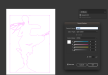
I am running Onyx thrive and have no issues getting our White to print. But accord to what I'm reading in this document I have for the setup, IF i want to print second surface (the back) and want white to go OVER the color layer, that the WHITE Spot1 layer needs to be overtop the color layer. Attached is my layer stack. The printer is still avoiding dropping ink overtop the text. What am I missing? Do I need to select overprint fill on the attributes for the Spot1 layer? (I am using Illustrator)
 

Attachments

  • Screenshot 2026-05-08 at 1.42.50 PM.png
    Screenshot 2026-05-08 at 1.42.50 PM.png
    46.9 KB · Views: 39

White Haus

Not a Newbie
This is for you guys using a flatbed.
I am running Onyx thrive and have no issues getting our White to print. But accord to what I'm reading in this document I have for the setup, IF i want to print second surface (the back) and want white to go OVER the color layer, that the WHITE Spot1 layer needs to be overtop the color layer. Attached is my layer stack. The printer is still avoiding dropping ink overtop the text. What am I missing? Do I need to select overprint fill on the attributes for the Spot1 layer? (I am using Illustrator)

Yes. Otherwise it will knockout the white wherever there are other (cmyk) objects.
 
  • Agree
Reactions: 2 users

Think713

New Member
No worries. Had a hell of time learning the ropes with Onyx/Spot1/white ink printing back in the day.
I remember raking my brain over the Spot1 vs Spotwhite because this instruction pdf I have mentions caldera and Im pretty positive it denotes Spotwhite for Onyx and Spot1 for Caldera, but its the other way around.
 

Think713

New Member
So I did that last job, and moved onto another project. And now for whatever reason I cant get this one to print any white at all. It was time for a Intermediate tank switch, and so I did that, and then the printer started throwing circulation errors. Those errors did stop after force shutting it down and restarting it. I removed and replaced the printheads back into place.

Onyx sees the spot. But for whatever reason the printer is not dropping the white at all anymore. Overprint fill IS checked in the file.
The artwork is a TIFF, the vector white on top is native inside illustrator. And Im saving a PDF.

Any ideas?
 

Attachments

  • Screenshot 2026-05-10 at 2.02.09 AM.png
    Screenshot 2026-05-10 at 2.02.09 AM.png
    77.3 KB · Views: 19

balstestrat

Problem Solver
In Onyx queye, you can double click your job and on the left, last menu "Named colors" or something like that, you can see if it's correctly detected.

If you can't see Spot1 there, your file is not saved correctly.
There's a lot of things that can go wrong and will make you crazy...
 

Think713

New Member
In Onyx queye, you can double click your job and on the left, last menu "Named colors" or something like that, you can see if it's correctly detected.

If you can't see Spot1 there, your file is not saved correctly.
There's a lot of things that can go wrong and will make you crazy...
Onyx seems to be reeding it no problem. Its showing up as green and under the media selector it shots all 6 printheads plus white and denotes a spot. So there shouldn't be any issue there.
Are you using the same material and profile? The profile might not include the white ink channel.
All of the media profiles will give you an option of white if Spot1 is marked as a color. So the media shouldn't matter.

It seems to be happening on the printer side IPS.
 

balstestrat

Problem Solver
What printmode are you using?

You can also see the layers in IPS if you double click your job and right side of the preview it will show CMYK and W layers separately.
 
Last edited:

SlikGRFX

New Member
To specifically answer your question, yes I'm running it on the same media, but I am doing tests on red vinyl. Both are not firing white.
I mean the media profile in onyx. If we select a media that uses a print profile that doesn’t have a spot color channel, it won’t print the spot color, even if it’s in the file. Maybe there’s a quickset or something that is changing it. Just an idea.
 

Think713

New Member
I mean the media profile in onyx. If we select a media that uses a print profile that doesn’t have a spot color channel, it won’t print the spot color, even if it’s in the file. Maybe there’s a quickset or something that is changing it. Just an idea.
Yea I get what you mean. But the R2000plus automatically denotes a potential spot channel in ONYX because it CAN print white. So whether or not I actually print white is only determined whether or not a named spot1 or other number inside the file is telling onyx to do so. In this case, my file is lit up green showing the layer that is to print in white. So Onyx is indeed seeing it.

BUT I have an update.
So Saturday when this was all happening this started with a litany of issues that began with a cover sensor having issues. Once that went away I did the intermediate tank change. That failed mid change because the cover sensor acted up during. So I restarted the printer (Several times) and it eventually was back online. Thats when I was having issues with recirculating. Those issues stopped. It was reading the printheads for white just fine. Diagnostics were fine. Everything according to the printer was fine.. No printing white. I suspected something was wrong with the intermediate tank because of the circulating problems.

So I redid the intermediate tank change from inside the diagnostic menu instead of the maintenance list menu, completed it, and restarted the printer.

No more issues, prints white just fine. Seems like it was a bad machine state from a failed intermediate tank change the first time. Just needed to actually finish that process or complete it entirely. Which probably should've been obvious but these printers do some dumb stuff sometimes and because of the other issues it was giving it, I didn't think anything of it.
 

Think713

New Member
What printmode are you using?

You can also see the layers in IPS if you double click your job and right side of the preview it will show CMYK and W layers separately.
This was ultimately set to backlit material with a white over flood. And yea i was looking at this stuff inside the IPS as well, and couldn't really to get what I wanted initially.
 
Top