
-
I want to thank all the members that have upgraded your accounts. I truly appreciate your support of the site monetarily. Supporting the site keeps this site up and running as a lot of work daily goes on behind the scenes. Click to Support Signs101 ...
You are using an out of date browser. It may not display this or other websites correctly.
You should upgrade or use an alternative browser.
You should upgrade or use an alternative browser.
Rasterlink stuck at locating & printing
- Thread starter Kilmore
- Start date

The ADA Guy
Premium Subscriber
It's not finding your printer, has your computer updated recently? I would 1st reboot the computer and then turn on your printer. If that doesn't solve the issue I would reinstall the drivers for the printer and make sure everything is up to date. Also if you go to devices and look at the printer check that the USB port address is correct. Hopefully that helps.
Thank you for your answer, but the strange thing is that my printer is found, at least at first when I can see the printer status and ink levels etc.It's not finding your printer, has your computer updated recently? I would 1st reboot the computer and then turn on your printer. If that doesn't solve the issue I would reinstall the drivers for the printer and make sure everything is up to date. Also if you go to devices and look at the printer check that the USB port address is correct. Hopefully that helps.
Everything is up to date and installed yesterday. I’ll take a look at the usb port adress, if I can find out how and where..

DL Signs
Never go against the family
Another possible source if everything is set up properly is, how long is the USB cable? Is it a good cable, or an el-cheapo?
The longer they are, the more data loss you get. It'll usually recognize the printer because that's just a handshake with little data, but when you send a lot of data it gets lost. Cheap cables are prone to RF interference too, so you want a good quality shielded cable with ferrite chokes to prevent RF, and anything over 15-20 feet an active cable works best. Printers can have issues being connected to a USB hub too, best to be a direct connection to the computer.
The longer they are, the more data loss you get. It'll usually recognize the printer because that's just a handshake with little data, but when you send a lot of data it gets lost. Cheap cables are prone to RF interference too, so you want a good quality shielded cable with ferrite chokes to prevent RF, and anything over 15-20 feet an active cable works best. Printers can have issues being connected to a USB hub too, best to be a direct connection to the computer.
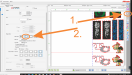
I guess the marks are technically called register marks. In Rasterlink, after you have set the resolution and passes, etc. Click the 5th box down on the right, then on the left pick the type of mark to use.Big thanx to all of you trying to help.
-I have remote turned on.
-I’ll try with a shorter usb cable.
-Where and how do I turn on crop marks?

DL Signs
Never go against the family
Had a hunch that's what it would be. Glad ya' got it figured out.Update:
I seems to have been as simple as a usb cable not good enough. Now its working again. Thanx everyone !

Solventinkjet
DIY Printer Fixing Guide
Mimaki recommends using a USB cable no longer than 14 ft. with no hubs etc. For some reason they are more susceptible to noise than other printers.

Andrewmsmith
Graphic Designer/Vinyl Print Output Production
[Ctrl] An error has been detected during Locating & Printing (#1)
I know this is an old post but i had the same error. and after some troubleshooting found that a desktop printer we had on the same port was creating a temporary communication error on the network. previous to that i was able to send smaller jobs no problem, but would get the error on longer runs. a temp fix i found that worked was to rip and print a 3"x5" photo, then Rip and print the 54"x100" file right behind it, and it seemed to use that "window" to get the data processed and printing correctly. but the long term solution will be to move my Epson desktop to another room and use a different port on the network. Hope this helps someone.
***UPDATE*** just as i am posting this and running a new test with desktop printer in new location. The error returned. So back to troubleshooting.
***UPDATE*** https://www.plctalk.net/forums/threads/ethernet-noise-reduction-strategies.67078/
Appears to have been residual noise/interference between power cable and data cable. I do not know why all of a sudden, nothing has changed in the print room, but adding the above mentioned desktop printer. either way, rearranging and separating my data cable form my power cables seems to have fixed the problem (for now).
I know this is an old post but i had the same error. and after some troubleshooting found that a desktop printer we had on the same port was creating a temporary communication error on the network. previous to that i was able to send smaller jobs no problem, but would get the error on longer runs. a temp fix i found that worked was to rip and print a 3"x5" photo, then Rip and print the 54"x100" file right behind it, and it seemed to use that "window" to get the data processed and printing correctly. but the long term solution will be to move my Epson desktop to another room and use a different port on the network. Hope this helps someone.
***UPDATE*** just as i am posting this and running a new test with desktop printer in new location. The error returned. So back to troubleshooting.
***UPDATE*** https://www.plctalk.net/forums/threads/ethernet-noise-reduction-strategies.67078/
Appears to have been residual noise/interference between power cable and data cable. I do not know why all of a sudden, nothing has changed in the print room, but adding the above mentioned desktop printer. either way, rearranging and separating my data cable form my power cables seems to have fixed the problem (for now).