• I want to thank all the members that have upgraded your accounts. I truly appreciate your support of the site monetarily. Supporting the site keeps this site up and running as a lot of work daily goes on behind the scenes. Click to Support Signs101 ...

Signlab/Versaworks colour issue

heyskull

New Member
I have created a EPS file in Signlab using Versaworks pallette.
This is a CMYK colour pallete.
This was printed to match my vinyl colours.
The customer now wants this print with a white fade either side, which I can add on each side.

Well I have tried everything I could think now to print it the same blue.
But now when I print it with the white fade the blue colour is changed to a different shade of blue!
I have changed the way it creates the fade, as Signlab prefers RGB so I have changed this to CMYK, but this doesn't change the print colour.
If I cannot rectify this I will have to reprint two signs that are over 30' long!

Thanks
SC
 

Solventinkjet

DIY Printer Fixing Guide
When you use a Versaworks spot color and send it to the RIP, it looks up that spot color in the Versaworks database and uses the specific CMYK values that are saved in that data base to override the color profile adjustments. When you make a gradient out of the same spot color, it uses the CMYK values saved in the color pallet to create a bitmap for the gradient. The important difference being that it loses the spot color designation and will no longer tell the RIP to ignore the color profile adjustments. RIPs also tend to have different rendering settings for vector and bitmap which could be causing your issue as well.

I don't use Versaworks enough to guide you very precisely here but, there should be a color setting that you can change to "Calibration and Ink Limit" or "Density Control Only." Those settings tell the RIP, don't color correct, use the exact CMYK values in my file, but still enforce ink limits. That should take care of the spot color issue. If it still prints off, you'll want to look for settings called "Rendering Intents" and make sure the bitmap settings is the same as the vector setting. One or both of those 2 fixes should do the trick.
 

Attila Nagy

New Member
Transparency and SPOT colors cannot use together. Not sure how to flatten transparency in Signlab. Can do it in Illustrator.
 
  • Agree
Reactions: 1 user

LizKeenan

New Member
how have you done the fading? I’ve used spots in gradients before to correct effects. The only time I’ve had the issue you are describing is when I try and do a blend with the spots, it messes up the spot color. The correct spot named in the gradient should work. If something funky is happening you could try creating 2 transparency masks to make the white portions fading. That way there’s actually no destructive mixing of the blue and white.
 
  • Agree
Reactions: 1 user

heyskull

New Member
I have tried printing these as a white fade and as a transparency maskand it keeps changing the blue.
I agree it is because I have used Versaworks pallete to match my vinyl colours.
I think the onlky way to match this is to find someone who can print me a white fade onto clear or reprint the complete sign in my standard RGB or CMYK palletes.

hank you everyone. I will try these and get back to you.
 

LizKeenan

New Member
I have tried printing these as a white fade and as a transparency maskand it keeps changing the blue.
I agree it is because I have used Versaworks pallete to match my vinyl colours.
I think the onlky way to match this is to find someone who can print me a white fade onto clear or reprint the complete sign in my standard RGB or CMYK palletes.

hank you everyone. I will try these and get back to you.
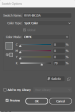
Are you sure your spots are set to Global, and as spot colors? If it is set to process color it will not work, also check in file format in versa works and check that it is actually using the library
 

Attachments

  • 1772811431321.png
    1772811431321.png
    20.5 KB · Views: 5

heyskull

New Member
Are you sure your spots are set to Global, and as spot colors? If it is set to process color it will not work, also check in file format in versa works and check that it is actually using the library
It is showing the correct colour in Versaworks. I believe it is is the white fade that is causing the colour change. Even changinging the cfade to Versawork colours it changes.
 
Top