• I want to thank all the members that have upgraded your accounts. I truly appreciate your support of the site monetarily. Supporting the site keeps this site up and running as a lot of work daily goes on behind the scenes. Click to Support Signs101 ...

Spot Colour for Omega (Composer) 6.5

MattRichie

New Member
Hi,

Using Omega 6.5 Composer to design aircraft placards, exporting EPS/PDF to OnyxGo RIP for HP Latex (e.g., 630W).

HP prints CMYK fine, but white ink won't print even in Spot mode.

Need to create a true spot color named 'Spot1' in Composer for auto-mapping to white channel without Onyx Spot Layer Tool each time. Any idea if this is possible?

Thanks,

Matt
 

LizKeenan

New Member
Oh, I’ve had to do the reverse and make spots to be imported INTO composer, but from what I’ve heard you should be able to actually make custom palettes for this purpose. I’ll poke around tomorrow and see if I can find it.
 

White Haus

Not a Newbie
Not sure that you can create new Spot colors in Composer, since it considers those as foils.

The other issue with that method, is that when exporting to EPS/PDF out of Composer, it converts appears to convert all values to RGB, losing all Spot color properties.

I (and by I, I mean ChatGPT) was able to write an Adobe Acrobat "Fixup" that will replace any specific RGB value, and convert it to a spot color named "Spot1". I tested the workflow and after a few tweaks was able to get it to flow smoothly from Composer to Onyx, and it will recognize it as "Spot1" aka white ink.

Doesn't look like I can attach it here, but I can always send it to you if you'd like. Alternatively, if you'd like to create it yourself:

Open Adobe Acrobat.

1. Open Preflight​

Tools → Print Production → Preflight

2. Go to Fixups​

Click the wrench icon
Search: “Convert color”

3. Click:​


Create New Fixup
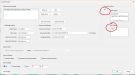
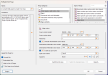
From there, settings should be adjusted to look like below:
1774008411049.png
Click OK.


**These specific RGB values that it's going to look for are just based on my random color test.
In Composer, I assigned a random CMYK value to an object that we'll pretend we want to print with white ink, in this case it was 100/0/100/0, which converts to R:1 G:147 B:69
1774009566514.png

**You can make this any color you want, you'll just have to verify what it converts to in RGB so that you use those values in your fixup**

Export your file (Using 100/0/100/0 for any objects you want to print white in Onyx) as a PDF, then open in Acrobat.

Run your fixup by going to:
Print Production
Preflight
Click on the Wrench icon
Find your Fixup (Convert RGB green to Spot1 for Onyx)
Click "Fix" in bottom right

It should analyze your file and convert your colors to Spot1.

I've set it to change to purple so it's obvious when it works, but you can set it to anything you like.

If you want to double-check that it worked before going to Onyx, you can do the following:

Print Production
Convert Colors
Click the little arrow on top right
You should see "Spot1" listed under Spot Colors now
1774009299245.png

Hope that all makes sense! It probably doesn't as I've only had one coffee, so let me know if you need any clarification.

There are probably other ways to achieve this but this was the only method I was able to get to work, with my limited knowledge of Acrobat preflight.

 

Attachments

  • 1774008493656.png
    1774008493656.png
    32.1 KB · Views: 3
  • I Appreciate You
Reactions: 1 user

LizKeenan

New Member
Not sure that you can create new Spot colors in Composer, since it considers those as foils.

The other issue with that method, is that when exporting to EPS/PDF out of Composer, it converts appears to convert all values to RGB, losing all Spot color properties.

I (and by I, I mean ChatGPT) was able to write an Adobe Acrobat "Fixup" that will replace any specific RGB value, and convert it to a spot color named "Spot1". I tested the workflow and after a few tweaks was able to get it to flow smoothly from Composer to Onyx, and it will recognize it as "Spot1" aka white ink.

Doesn't look like I can attach it here, but I can always send it to you if you'd like. Alternatively, if you'd like to create it yourself:

Open Adobe Acrobat.

1. Open Preflight​

Tools → Print Production → Preflight

2. Go to Fixups​

Click the wrench icon
Search: “Convert color”

3. Click:​


Create New Fixup
From there, settings should be adjusted to look like below:
View attachment 181635
Click OK.


**These specific RGB values that it's going to look for are just based on my random color test.
In Composer, I assigned a random CMYK value to an object that we'll pretend we want to print with white ink, in this case it was 100/0/100/0, which converts to R:1 G:147 B:69
View attachment 181639

**You can make this any color you want, you'll just have to verify what it converts to in RGB so that you use those values in your fixup**

Export your file (Using 100/0/100/0 for any objects you want to print white in Onyx) as a PDF, then open in Acrobat.

Run your fixup by going to:
Print Production
Preflight
Click on the Wrench icon
Find your Fixup (Convert RGB green to Spot1 for Onyx)
Click "Fix" in bottom right

It should analyze your file and convert your colors to Spot1.

I've set it to change to purple so it's obvious when it works, but you can set it to anything you like.

If you want to double-check that it worked before going to Onyx, you can do the following:

Print Production
Convert Colors
Click the little arrow on top right
You should see "Spot1" listed under Spot Colors now
View attachment 181638

Hope that all makes sense! It probably doesn't as I've only had one coffee, so let me know if you need any clarification.

There are probably other ways to achieve this but this was the only method I was able to get to work, with my limited knowledge of Acrobat preflight.
Strangely even though it considers things foils, it does have cmyk capabilities because of the cmyk foil sets, and it can import whatever spot name you want from illustrator. This is how we work around setting things up in illustrator for composer import on occasion. We use the Gerber illustrator palette with a dummy vinyl palette named something close to the real vinyl name, it comes in as a process color with a labeled spot name easy to convert to foil.

I am also at work now and can see there is a blank user palette I’ve never actually used. Gerber says you can fill it with whatever commonly used swatches you have and it will load it to an internal library in program data or something so it’s always there. You should be able to make some swatches and plug it there.

I will say I am a bit perplexed why you’d want to design cmyk wide format in composer, but I’m too interested in this problem to care.
 
  • Informative
Reactions: 1 user

White Haus

Not a Newbie
I will say I am a bit perplexed why you’d want to design cmyk wide format in composer, but I’m too interested in this problem to care.
I think it's mainly that the OP is used to the Gerber workflow and is hoping to eliminate the need of incorporating Adobe/Corel software into the mix.
 

MattRichie

New Member
Not sure that you can create new Spot colors in Composer, since it considers those as foils.

The other issue with that method, is that when exporting to EPS/PDF out of Composer, it converts appears to convert all values to RGB, losing all Spot color properties.

I (and by I, I mean ChatGPT) was able to write an Adobe Acrobat "Fixup" that will replace any specific RGB value, and convert it to a spot color named "Spot1". I tested the workflow and after a few tweaks was able to get it to flow smoothly from Composer to Onyx, and it will recognize it as "Spot1" aka white ink.

Doesn't look like I can attach it here, but I can always send it to you if you'd like. Alternatively, if you'd like to create it yourself:

Open Adobe Acrobat.

1. Open Preflight​

Tools → Print Production → Preflight

2. Go to Fixups​

Click the wrench icon
Search: “Convert color”

3. Click:​


Create New Fixup
From there, settings should be adjusted to look like below:
View attachment 181635
Click OK.


**These specific RGB values that it's going to look for are just based on my random color test.
In Composer, I assigned a random CMYK value to an object that we'll pretend we want to print with white ink, in this case it was 100/0/100/0, which converts to R:1 G:147 B:69
View attachment 181639

**You can make this any color you want, you'll just have to verify what it converts to in RGB so that you use those values in your fixup**

Export your file (Using 100/0/100/0 for any objects you want to print white in Onyx) as a PDF, then open in Acrobat.

Run your fixup by going to:
Print Production
Preflight
Click on the Wrench icon
Find your Fixup (Convert RGB green to Spot1 for Onyx)
Click "Fix" in bottom right

It should analyze your file and convert your colors to Spot1.

I've set it to change to purple so it's obvious when it works, but you can set it to anything you like.

If you want to double-check that it worked before going to Onyx, you can do the following:

Print Production
Convert Colors
Click the little arrow on top right
You should see "Spot1" listed under Spot Colors now
View attachment 181638

Hope that all makes sense! It probably doesn't as I've only had one coffee, so let me know if you need any clarification.

There are probably other ways to achieve this but this was the only method I was able to get to work, with my limited knowledge of Acrobat preflight.
Thanks for this, I just tried accessing print production in Adobe Acrobat and unfortunately it's locked down due to my companies IT rules ಠ﹏ಠ

Also the one issue I've ran into ripping PDFs into OnyxGo is that it does not carry over the cut lines from composer, maybe the local tech from ND Graphics missed something in his crash course for OnyxGo?

One solution I found accidently for printing white was that choosing to do a spot layer correction and, depending on the placard, able to select "Fill Non-Image Area" and it'll print white where I need it no problem. This doesn't work for placards we need created on Lexedge, which will need the white backgrounds created in composer, that is why I needed the spot channel created in composer.

At this rate, grandfathering our Gerber workflow to be compatible with the HP Latex printing is turning into a lot of buts and maybes LOL. I hope Adobe illustrator's workflow is a whole lot more simpler.
 

MattRichie

New Member
Strangely even though it considers things foils, it does have cmyk capabilities because of the cmyk foil sets, and it can import whatever spot name you want from illustrator. This is how we work around setting things up in illustrator for composer import on occasion. We use the Gerber illustrator palette with a dummy vinyl palette named something close to the real vinyl name, it comes in as a process color with a labeled spot name easy to convert to foil.

I am also at work now and can see there is a blank user palette I’ve never actually used. Gerber says you can fill it with whatever commonly used swatches you have and it will load it to an internal library in program data or something so it’s always there. You should be able to make some swatches and plug it there.

I will say I am a bit perplexed why you’d want to design cmyk wide format in composer, but I’m too interested in this problem to care.
As much as I'd love to move over to a simpler workflow immediately for CMYK format printing, I need to be able to include the Gerber workflow for use on our HP latex printer for reasons above my pay grade ಥ_ಥ
 
Top